> For the complete documentation index, see [llms.txt](https://flexi-library.gitbook.io/flexi-sections/llms.txt). Markdown versions of documentation pages are available by appending `.md` to page URLs; this page is available as [Markdown](https://flexi-library.gitbook.io/flexi-sections/sections/collections-and-categories/collection-slider.md).
# Collection Slider
The **Collection Slider** section displays your Shopify collections in a smooth, swipeable carousel that automatically pulls in collection images, titles, and descriptions straight from your store, making it perfect for showcasing your product collections in an engaging, scrollable format. Each collection appears as a card with its featured image, title, and optional description, and you can control how many collections are visible at once on desktop, tablet, and mobile (you can even use decimals like 3.5 to create that "peeking" effect that encourages visitors to scroll). The slider comes with optional navigation arrows that you can position above or below the content, plus you can add an optional heading at the top, enable autoplay with custom timing, make it loop seamlessly, or allow visitors to drag through collections on touch devices. All cards are fully customizable—adjust image aspect ratios, spacing, alignment, typography, and colors—and everything's editable through Shopify's Theme Customizer with no coding required. It works seamlessly with any Shopify 2.0 theme like Dawn or Horizon, making it ideal for highlighting featured collections, seasonal promotions, or any spot where you want to give your product collections that dynamic, interactive showcase they deserve.
### Setup Instructions
{% stepper %}
{% step %}
**Install the App**
Visit the Shopify App Store and install Flexi Slider Sections. Start your free trial to access all features and sections.
{% endstep %}
{% step %}
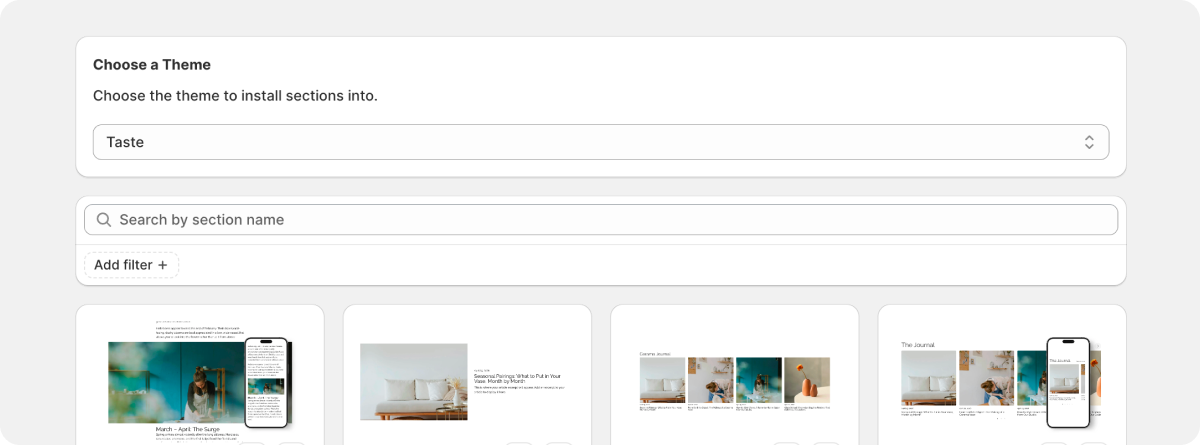
**Install Section**
Open the Flexi app and navigate to the sections library. Search for "Collection Slider" and click "Add to Theme" to install it instantly.
{% endstep %}
{% step %}
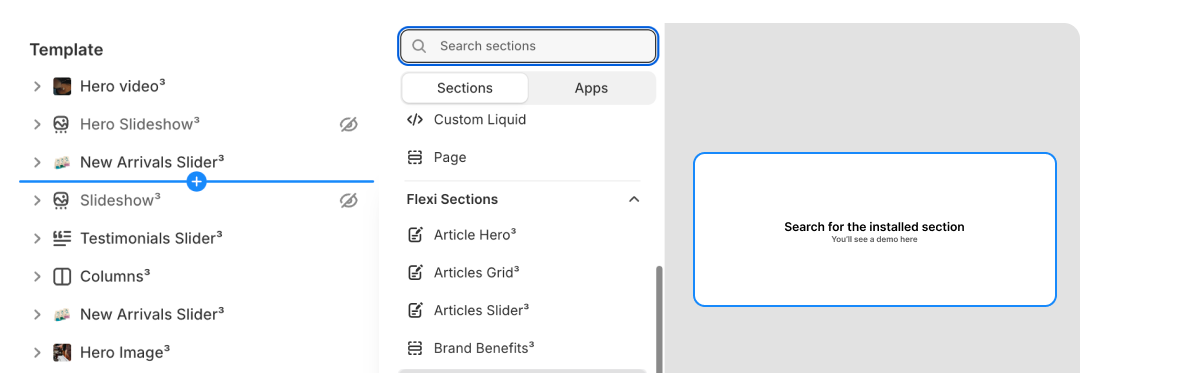
**Add to Your Store**
Go to your Shopify admin → Online Store → Themes → Customize. Click "Add section" and select "Collection Slider" from the available sections.
{% endstep %}
{% step %}
**Set Section Width**
In the section settings, choose your preferred layout:
* **Full width**: Spans the entire page width
* **Fixed width**: Set a custom maximum width (320px - 1440px)
* **Theme width**: Use your theme's default container width
{% endstep %}
{% step %}
**Add Content**
Click "Add block" to add product groups. Each group can contain multiple products with customizable layouts including titles, prices, images, and buttons.
{% endstep %}
{% step %}
**Customize & Style**
Fine-tune your slider with the built-in settings:
* Adjust background colors or add background images
* Control spacing and padding
* Set slider behavior (auto-play, loop, arrows)
* Customize typography and colors
{% endstep %}
{% endstepper %}
{% hint style="info" %}
#### Why Use Flexi Sections?
**Designed to Feel Native**\
Flexi sections are built to inherit your theme’s structure and styles, so they blend in naturally instead of feeling bolted on. Spend less time overriding CSS and more time shipping polished layouts that feel intentional.
**Prebuilt, Not Prescriptive**\
Each section provides a production-ready foundation without locking you into rigid layouts. Configure content, spacing, and structure to match your client’s needs—without rebuilding the same patterns from scratch.
**Theme-First Customization**\
All styling and layout adjustments happen through the Shopify Theme Editor. Tweak typography, spacing, alignment, and behavior using familiar theme controls, just like native sections.
**Built for Performance & SEO**\
Flexi sections are optimized for real storefronts, not demos. Lightweight markup and thoughtful defaults help keep pages fast, stable, and search-friendly across devices.
**Works Across Any Shopify Theme**\
Flexi sections work with any Shopify 2.0 theme, including Dawn, Horizon, and custom builds. Test safely on duplicate themes and ship with confidence.
**Easy to Maintain Over Time**\
Once a section is in place, it’s easy to manage. Update content, swap images, or adjust layout directly in the Shopify admin—no fragile custom code or one-off fixes to maintain later.
**Built for Reuse Across Projects**\
Flexi is designed for builders shipping real work. Reuse the same section patterns across client projects to stay consistent, move faster, and avoid unnecessary technical debt.
{% endhint %}